Did you know you can save a custom query, like “all emails from my boss flagged as high importance”, as a folder that stays up to date automatically? This lets you jump straight to the results without re-running the search each time.
How to create a Search Folder in Outlook 365 (Desktop or Web):
- Switch to Folder view.
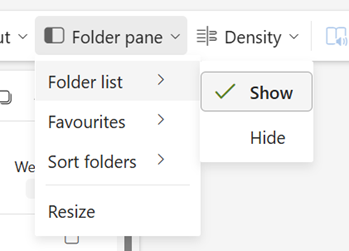
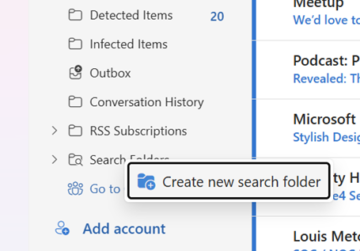
2. Right-click Search Folders and choose Create new search folder.
3. Select a type from the drop-down box (e.g., “Email from specific people”)
5. Give the folder a clear name (e.g., “High Priority from Boss”). It’s automatically saved under Search Folders.
6. Add people (up to 10 of them)
7. Click OK.
NB. Classic Outlook has a great deal more Search Folder functionality than Outlook 365, so read on!
How to create a Search Folder in classic Outlook:
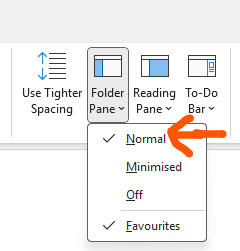
In classic Outlook, make sure Folder Pane is set to Normal (not Minimised).
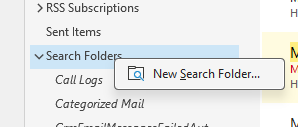
- Right-click Search Folders (or click the “New Search Folder” button in the ribbon) and choose New Search Folder.
- Select a type from the drop-down box (e.g., “Email from specific people”)
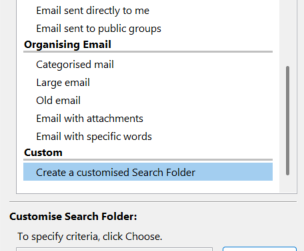
Or select Create a customised Search Folder
- Click Choose to set the criteria:
- Give the folder a clear name (e.g., “High Priority from Boss”)
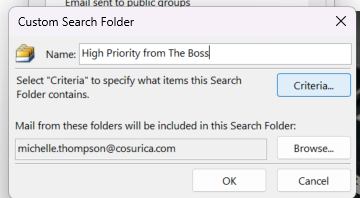
- Select Criteria to specify the search terms:
- From: type your boss’s name or email address
- Importance: select High
- Add any other filters you need (date range, subject keywords, etc.).
- It will save under Search Folders.
- Click OK.
With this built-in feature Outlook creates the search folder and automatically populates it with matching messages. Whenever a new email meets the criteria, it appears in the folder instantly, no manual refresh required.
Why are search folders in Outlook helpful?
No more repeating the same search over and over! Click the folder and the latest results are right there, saving you time and keeping critical emails front?and?centre.