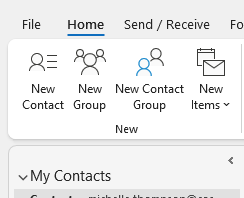
Did you know you can use Outlook Contact Groups to bundle any set of contacts into a single group and send a message to everyone with just one address? It’s a huge time?saver, eliminating the risk of forgetting a recipient. Once you’ve set up your contacts group (you can have more than one if you like) all you need to do is type the name of the group in the To: field of an email. The email will go to all members of that group. You can expand the group to show all the individual members in the To: field.
How to create an Outlook Contact Group in Outlook?365 Desktop
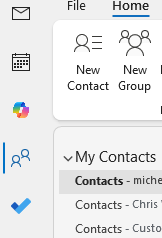
- Switch to People (the icon at the bottom of the navigation pane).
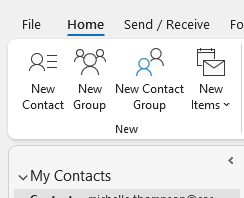
- Click New Contact Group (or New???Contact Group).
- Give the group a clear name.
- Click Add Members
- Choose From Outlook Contacts or From Address Book, select the people you want, then click OK.
- Hit Save & Close.
Create a group – Outlook 365 (Outlook.com / Outlook on the web)
- Open People
- Click New contact list (or New???Contact List).
- Give the list a name
- Click Add Members, pick contacts from your address book or type new email addresses, then hit Create.
How to create a group in Classic Outlook
Open People
- Click on New Contact Group
- Click on Add Members and select people from your Address Book or Contacts List
Why Outlook Contact Groups are so handy:
One click in the To field expands the whole group, keeping your message tidy and ensuring everyone gets the same info instantly. Updating a group is as easy as editing the list with no need to rewrite dozens of addresses.
Give it a try next time you need to reach a project team, club, or even a family list!